










Please make sure your battery meets the following requirements:
- BK215 firmware version ≥ V1.5.7
- BK215 Plus firmware version ≥ V4.0.3
- Battery local communication is enabled
How can you verify the above information?
Click view details steps >
Install Home Assistant
Please visit: https://www.home-assistant.io/installation/
Complete Home Assistant onboarding
Please visit: https://www.home-assistant.io/getting-started/onboarding/
Install the Home Assistant Community Store (HACS)
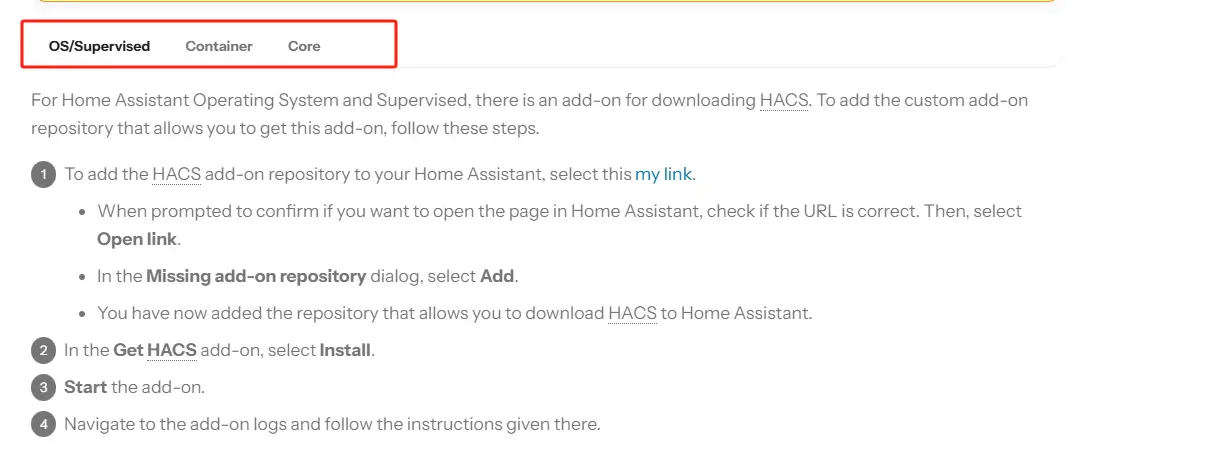
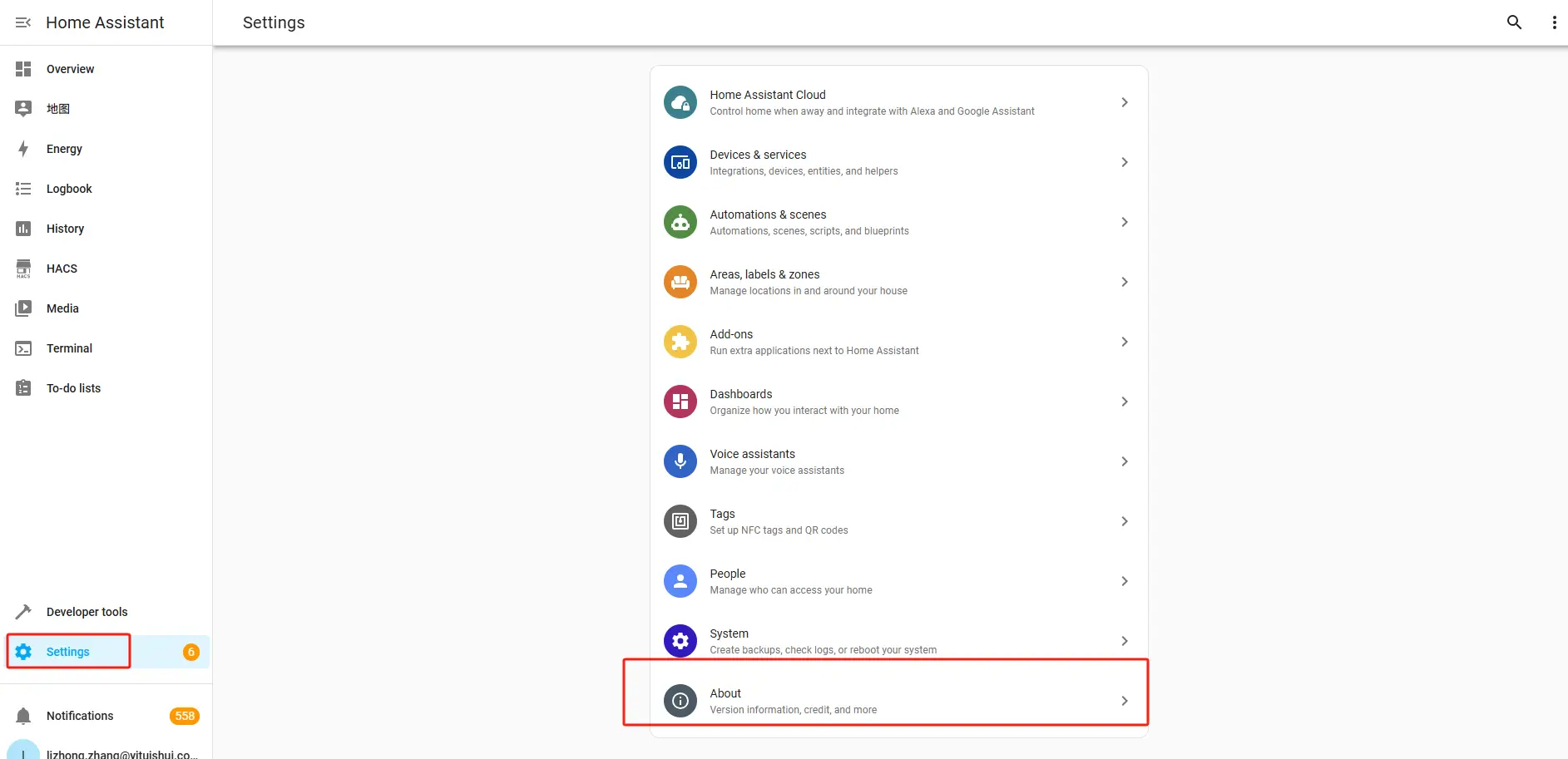
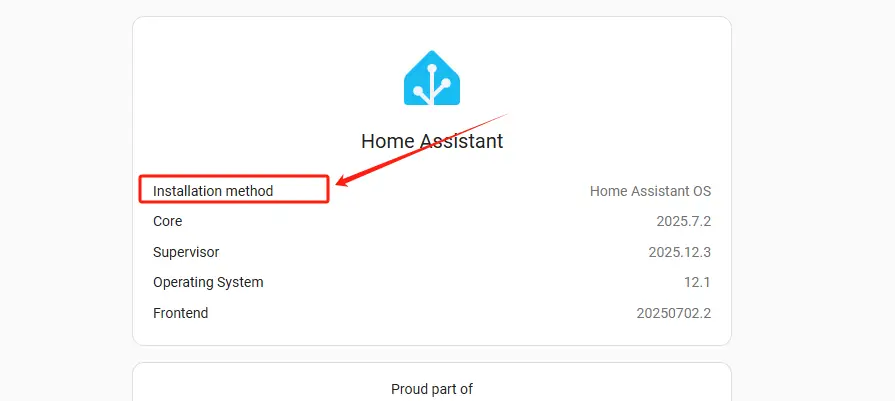
Note: Check your Home Assistant version first: click "Settings" in the left sidebar, then click "About". Home Assistant 2026.11 and later include the Marketplace and do not need HACS, skip this step. Earlier versions need HACS.
Please visit: https://hacs.xyz/docs/use/

Check network connectivity
Make sure the BK215 / BK215 Plus and Home Assistant are connected to the same local network.
Integration Procedure
To make the integration process easier, we recommend completing the setup on a PC.
Once the integration is complete, you can view device information in Home Assistant on either your PC or mobile device.
Step-1 | Access the Home Assistant web interface.
Open a web browser on your computer and go to:
http://homeassistant.local:8123(Ensure your computer and Home Assistant are on the same local network.)
Step-2 | Install the battery custom plugin via HACS
Home Assistant 2026.11 and later: install the plugin with the Marketplace as described in: Install SunEnergyXT plugins with the Home Assistant Marketplace. Earlier versions: follow the guide below.
Please visit: Battery Custom Plugin Installation Guide
Step-3 | Integrate your device into Home Assistant
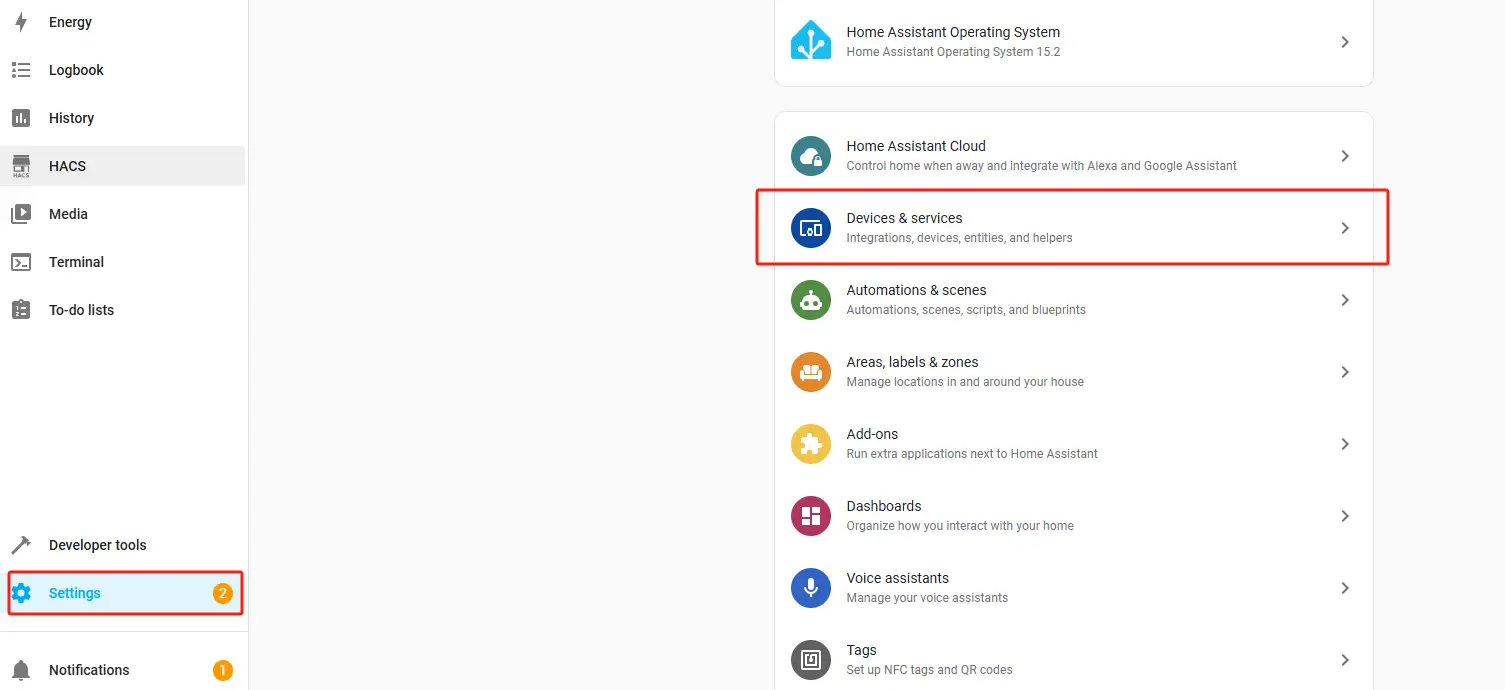
1. On the Home Assistant page, click "Settings" in the left sidebar, then click "Devices & services".
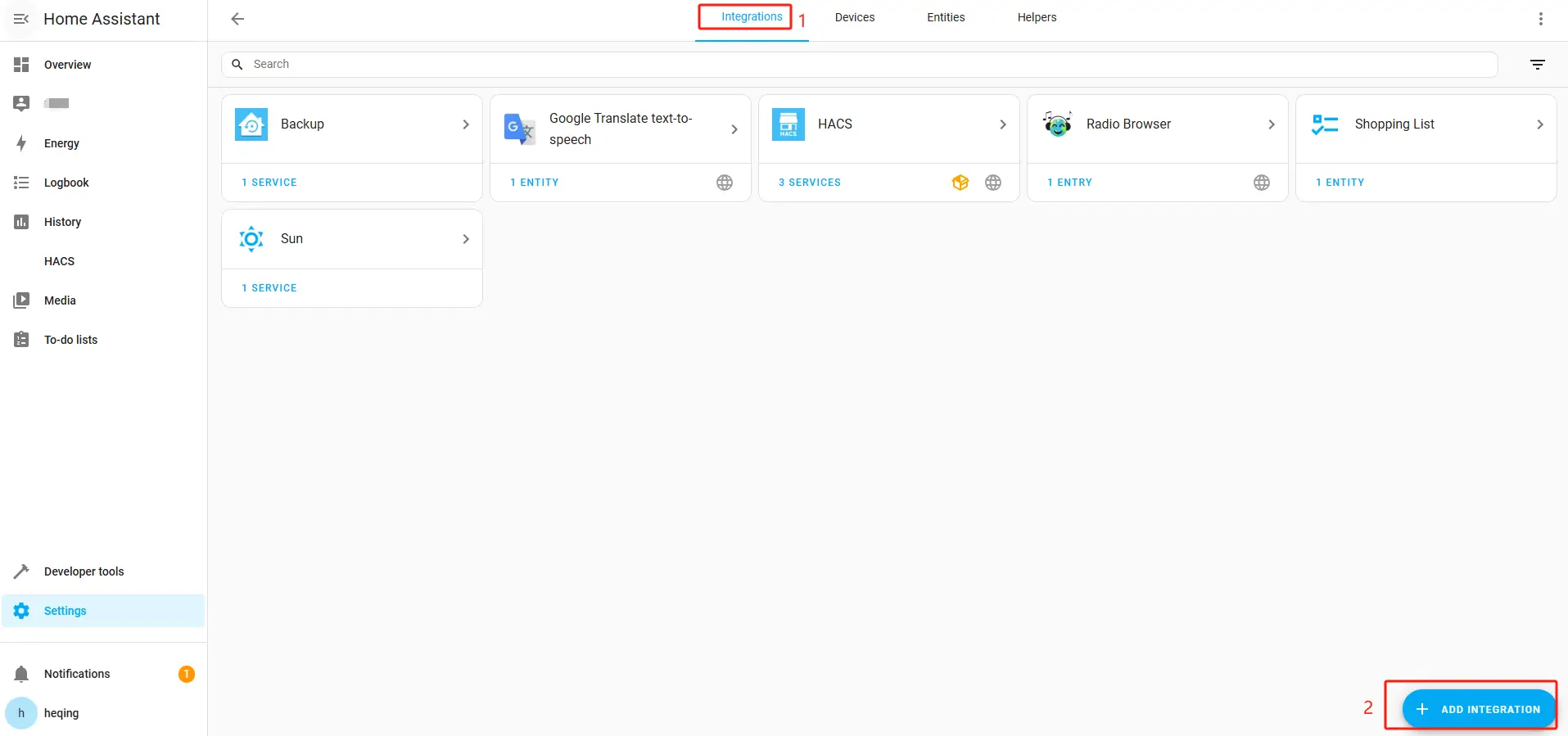
2. Select "Integrations" and click "Add INTEGRATION".
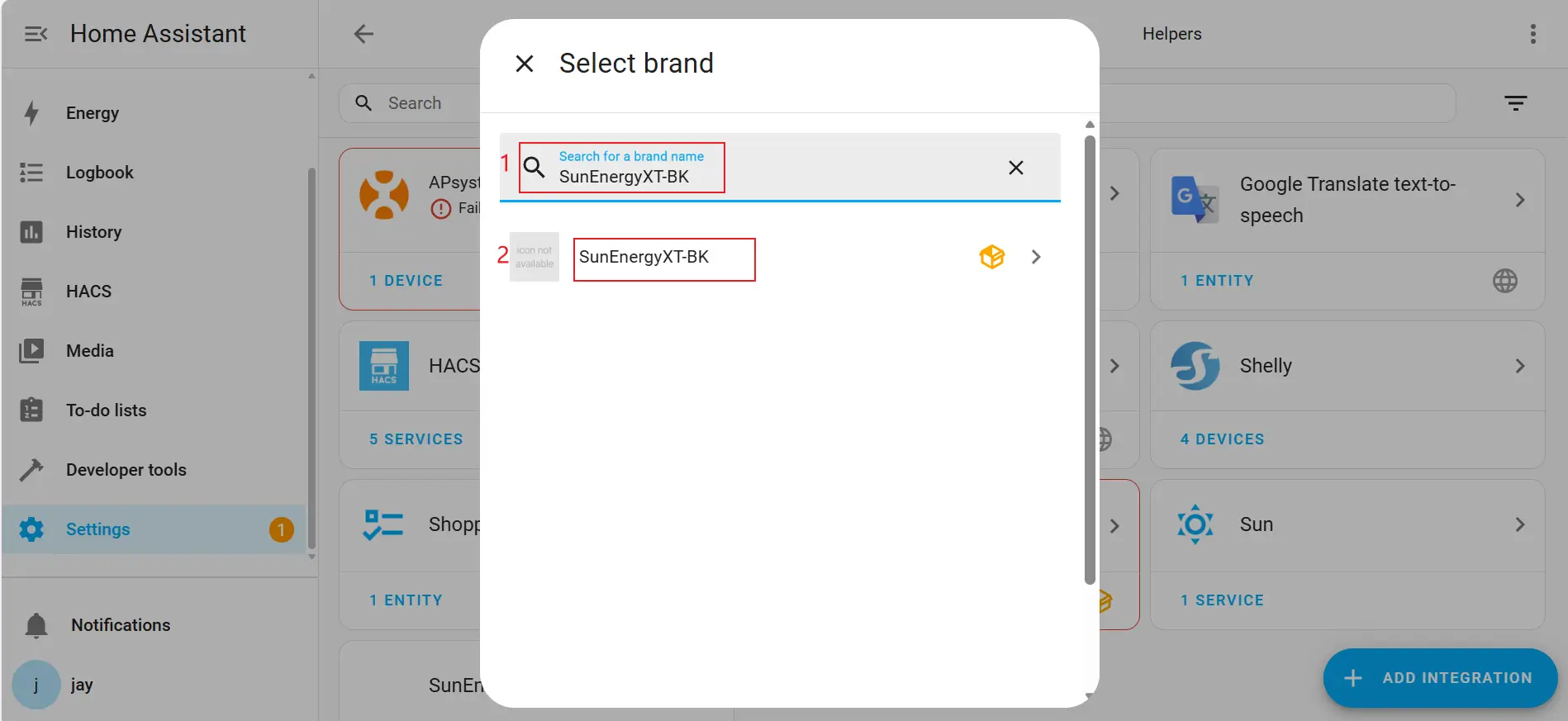
3. Search for "SunEnergyXT-BK" and select the SunEnergyXT-BK integration.
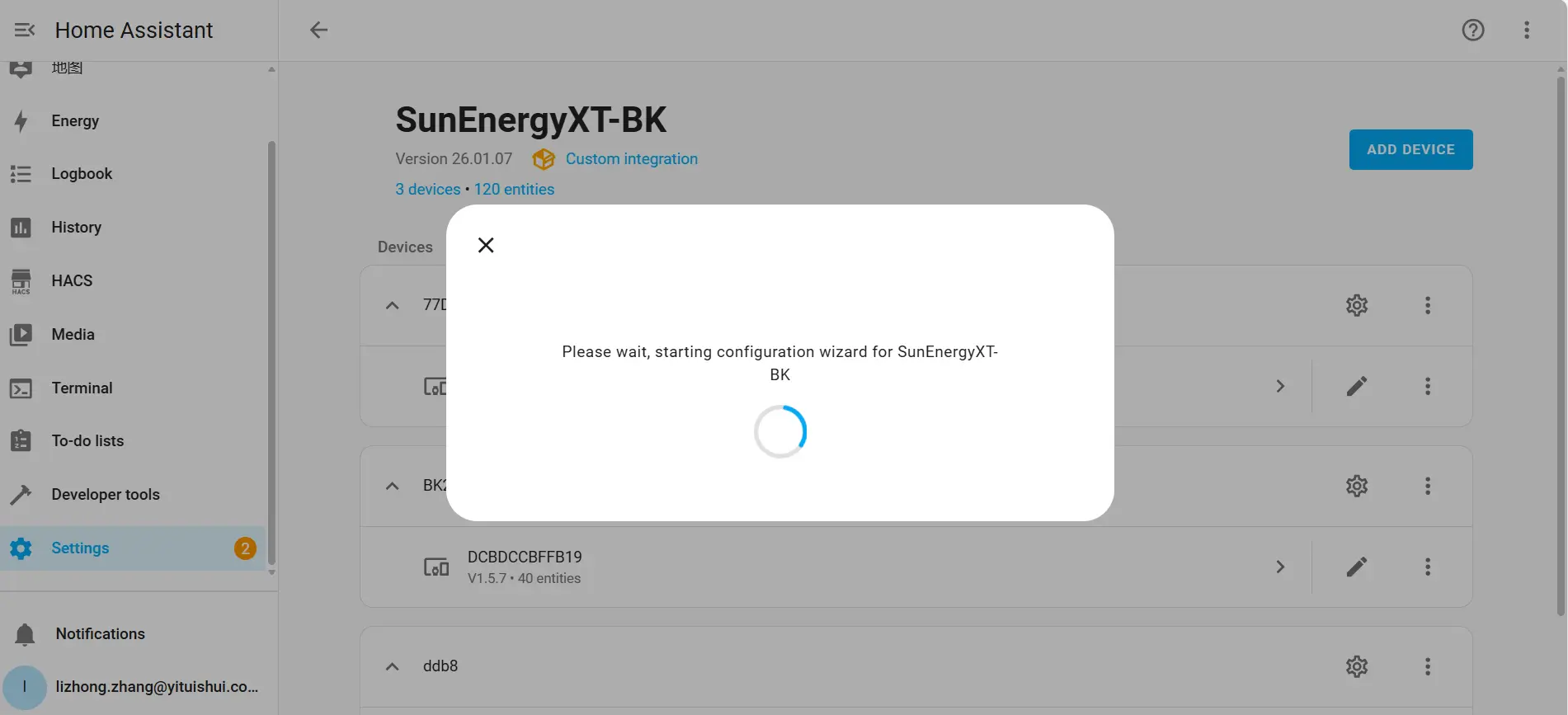
4. Waiting for system configuration.
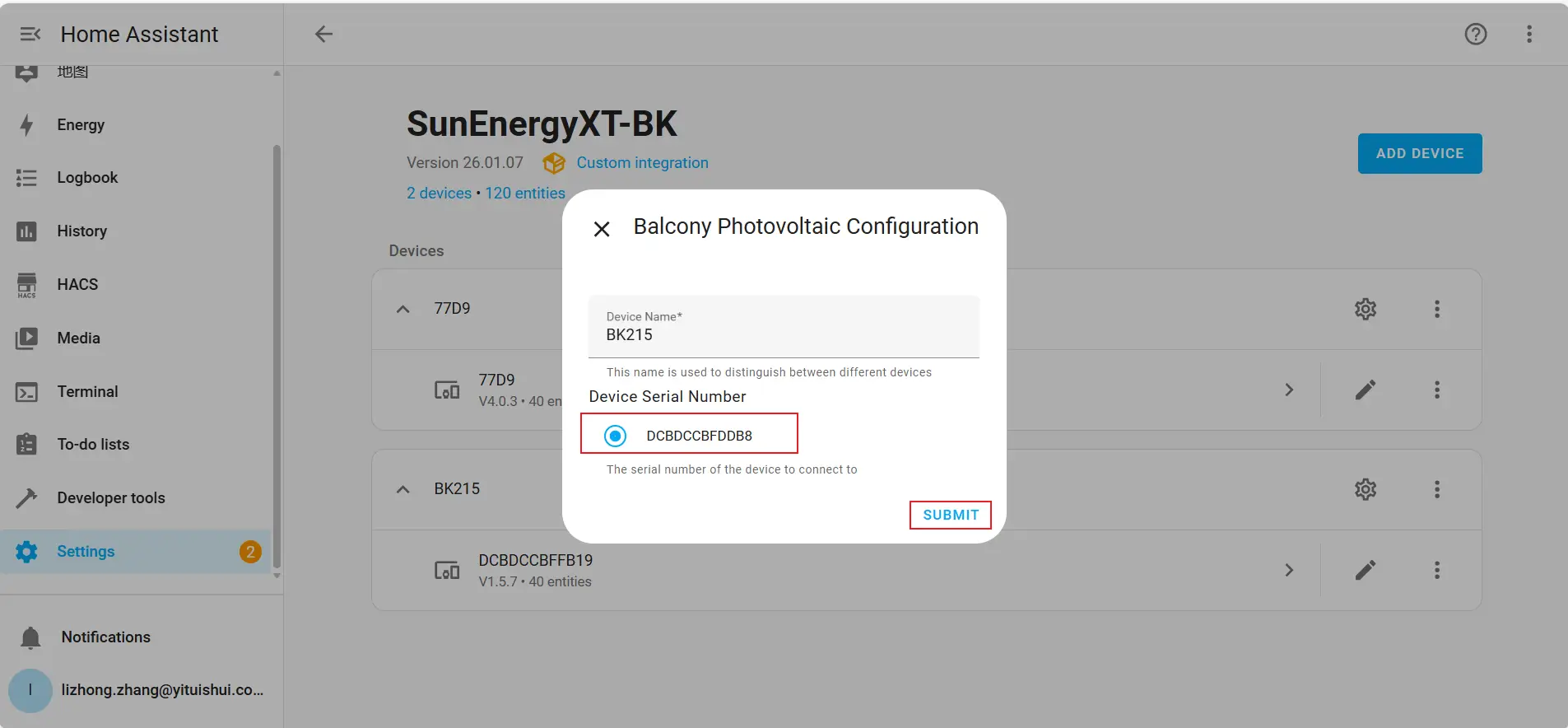
Step 4 | Configure the Device
1. If the device serial number is displayed, select the device and click "SUBMIT".
2. If “manual_config” is displayed, it indicates that the device was not automatically discovered. You will need to configure it manually.
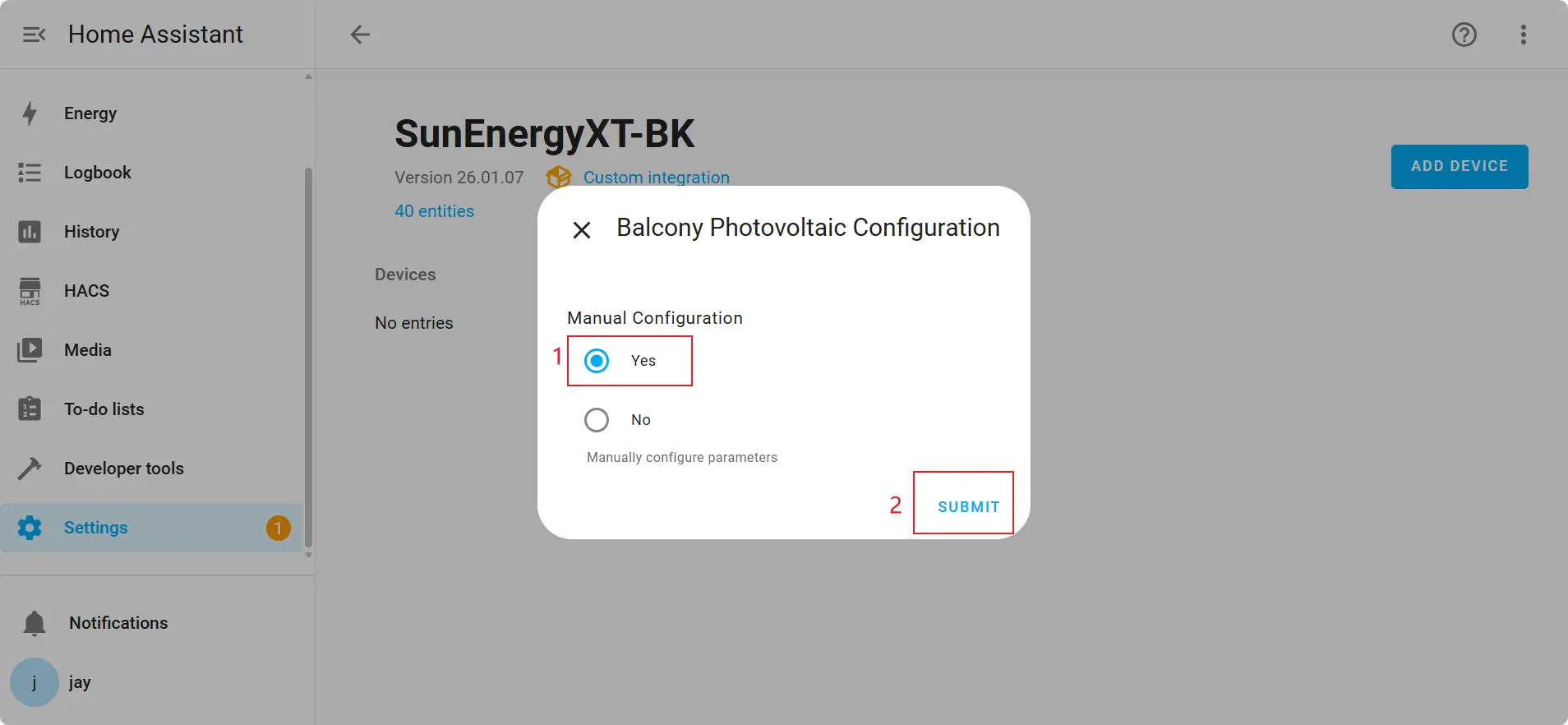
- The "manual configuration" process is as follows:
- Select "Yes" and click "SUBMIT".
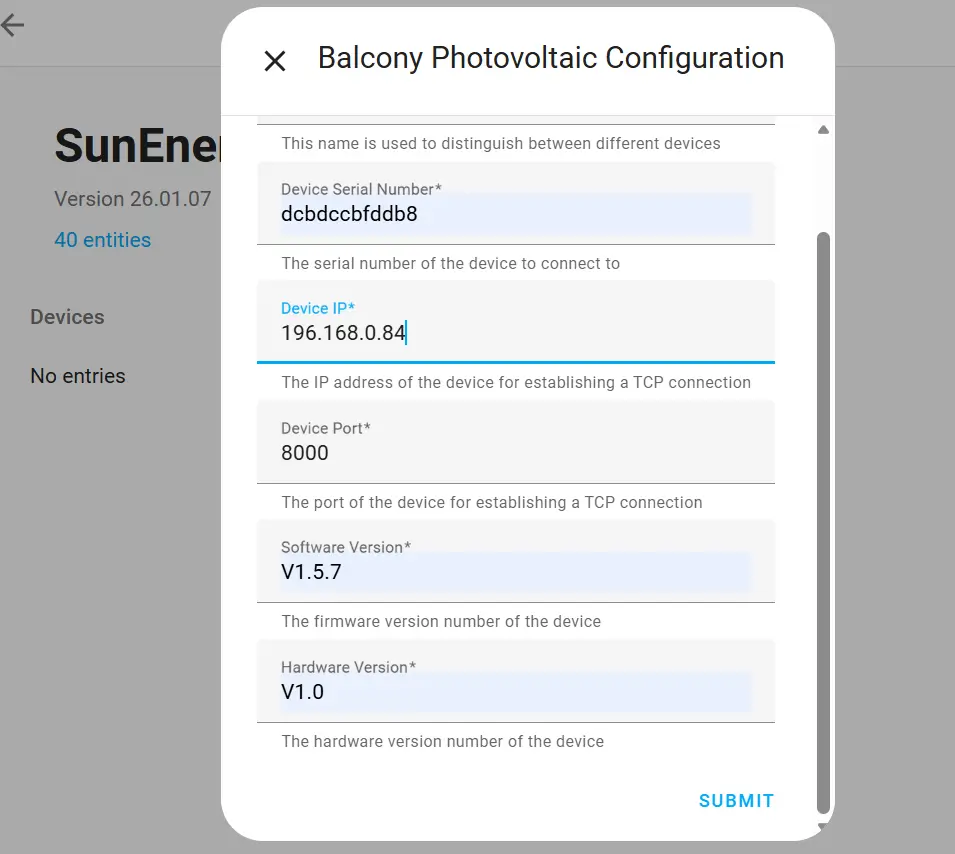
- Please fill in the following information:
- Device name: BK215 (You can also customize the device name.)
- Serial number: The device serial number.
- Host: The device IP address (How to obtain an IP address?)
- Port: 8000
- Software Version: Battery firmware version (How to obtain?)
- Hardware Version: Battery hardware version (How to obtain?)
- After completing the form, click "SUBMIT".

3. Click the "SKIP AND FINISH" in the pop-up window and complete the integration.
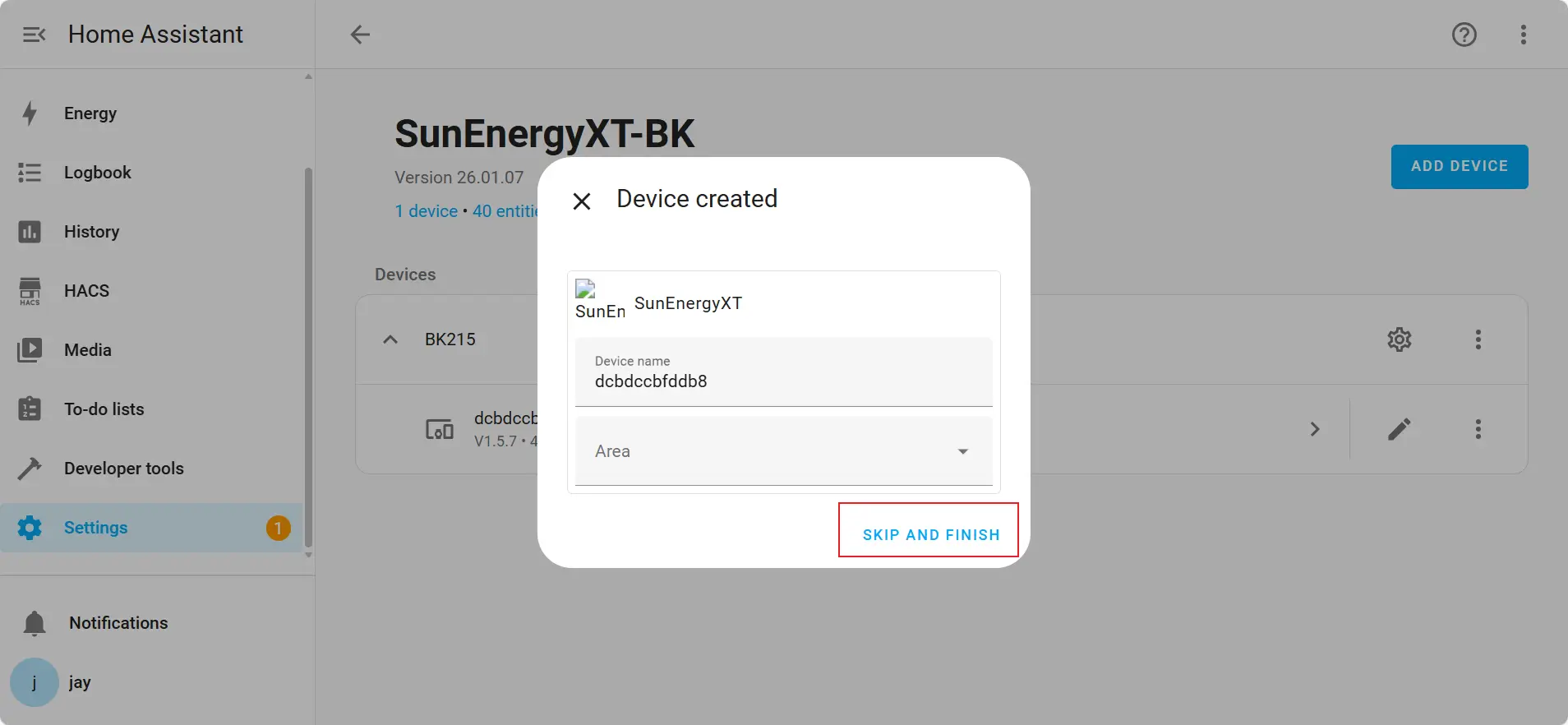
Step 5 | Verify Integration
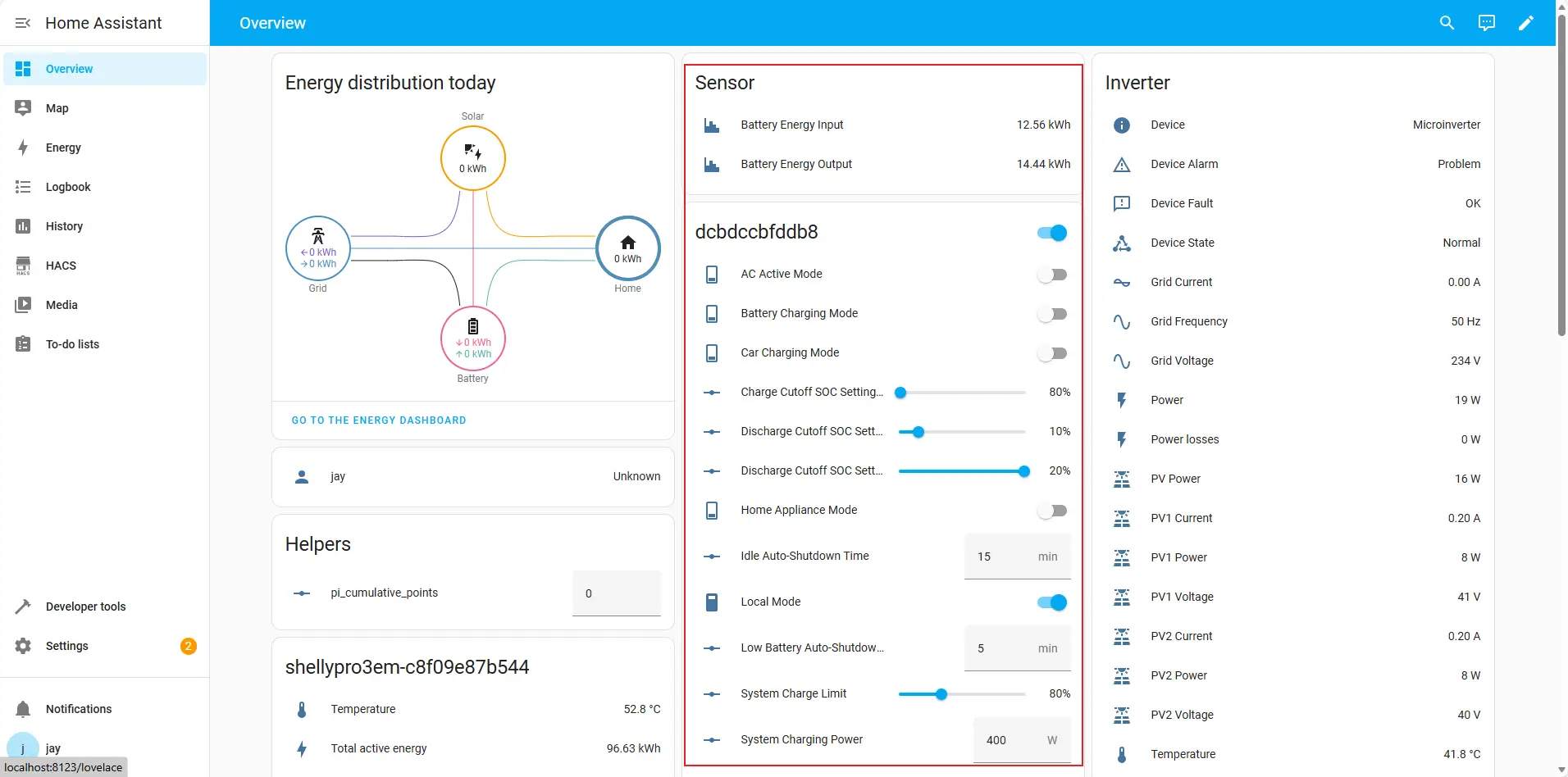
Once the integration is successful, you can view the device data and controls in Home Assistant, as highlighted in the interface.