




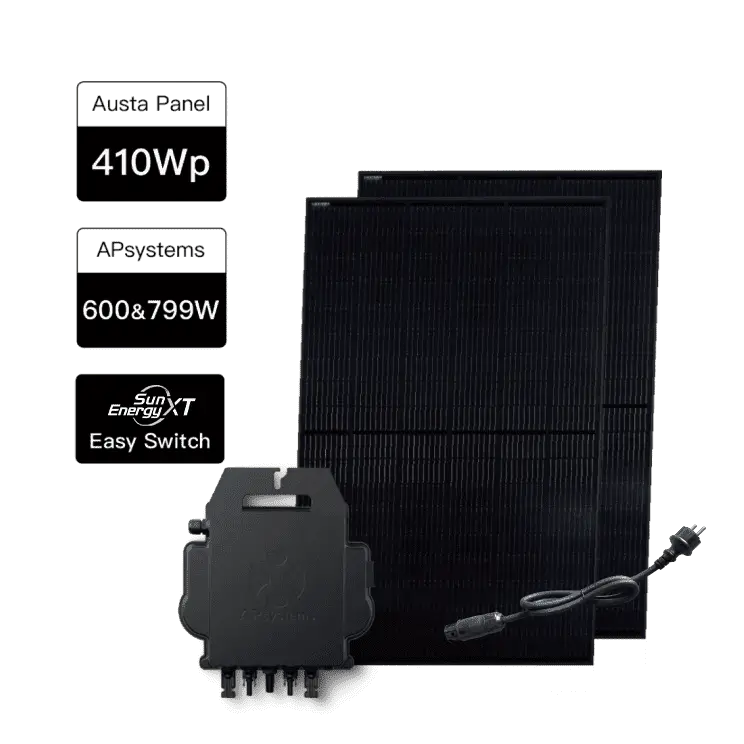


Please download the App, complete the registration, and follow the on-screen instructions to add your device. You can find the detailed App installation guide here: https://www.sunenergyxt.com/en/download-app
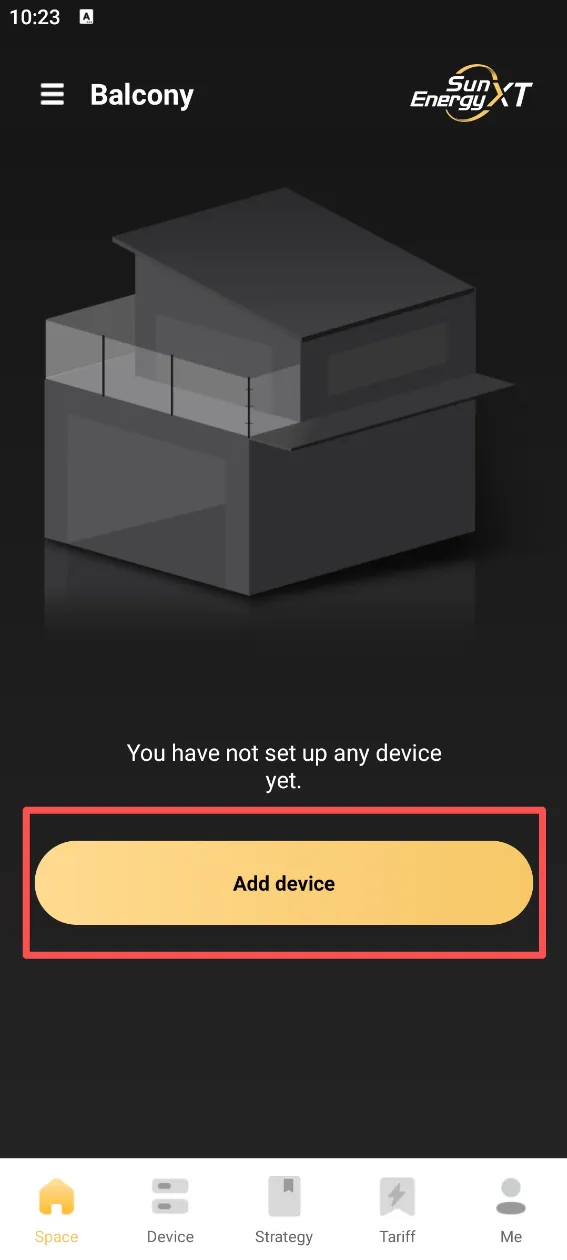
Step-1 |
On the "Space" screen, tap the "Add device" button.
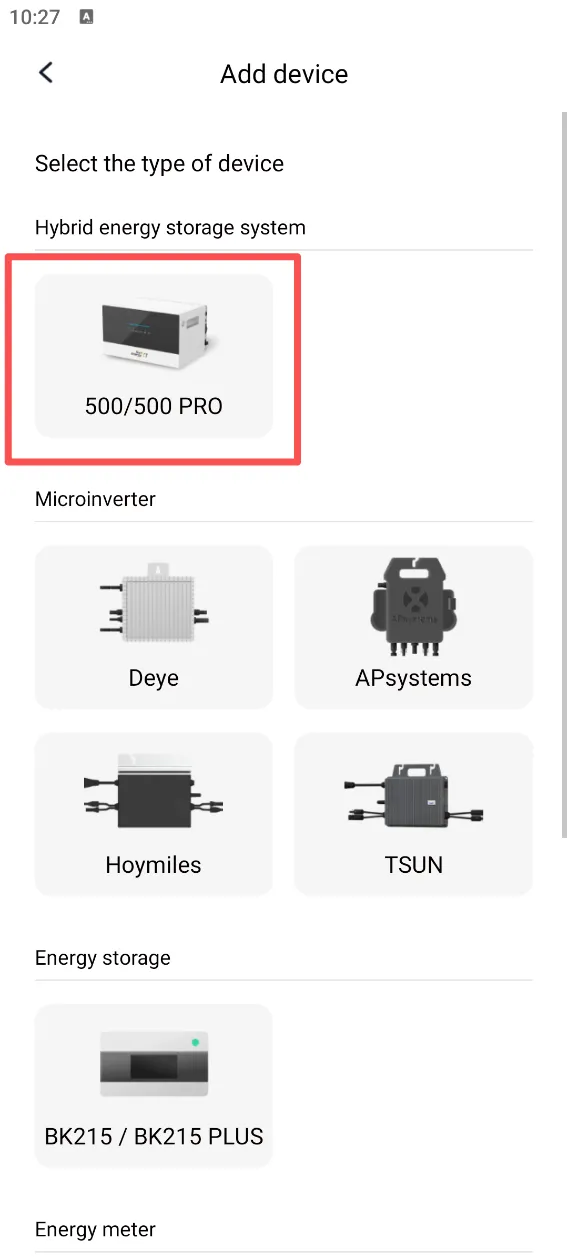
Step-2 |
Under the "Hybrid energy storage system" category, select "500/500 PRO".
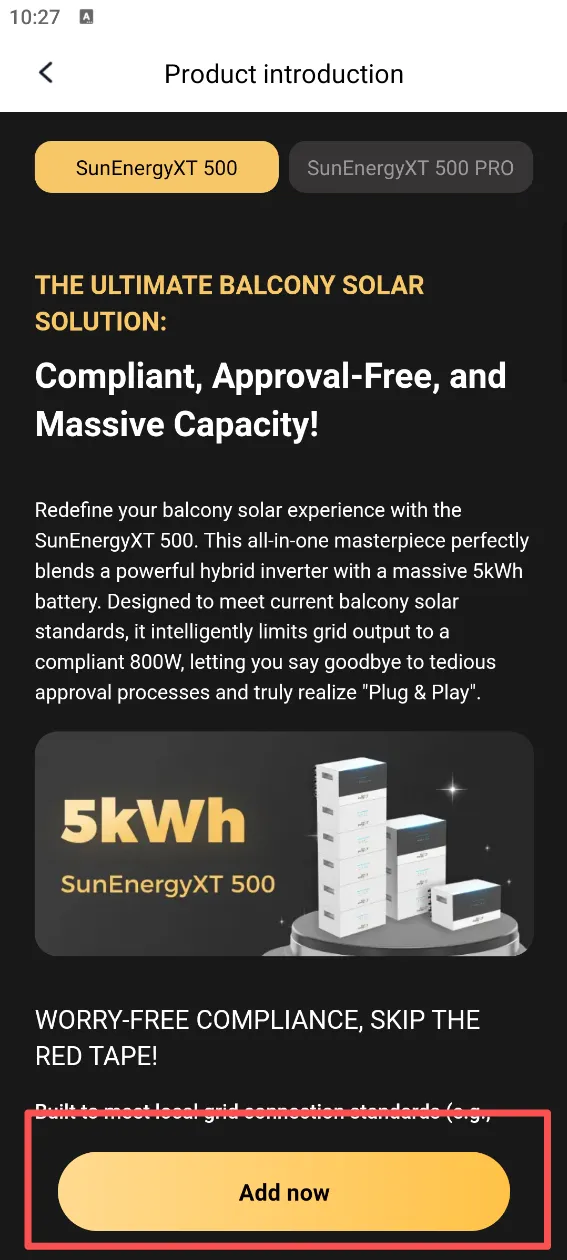
Step-3 |
On the Product introduction page, tap the "Add now" button.
Step-4 |
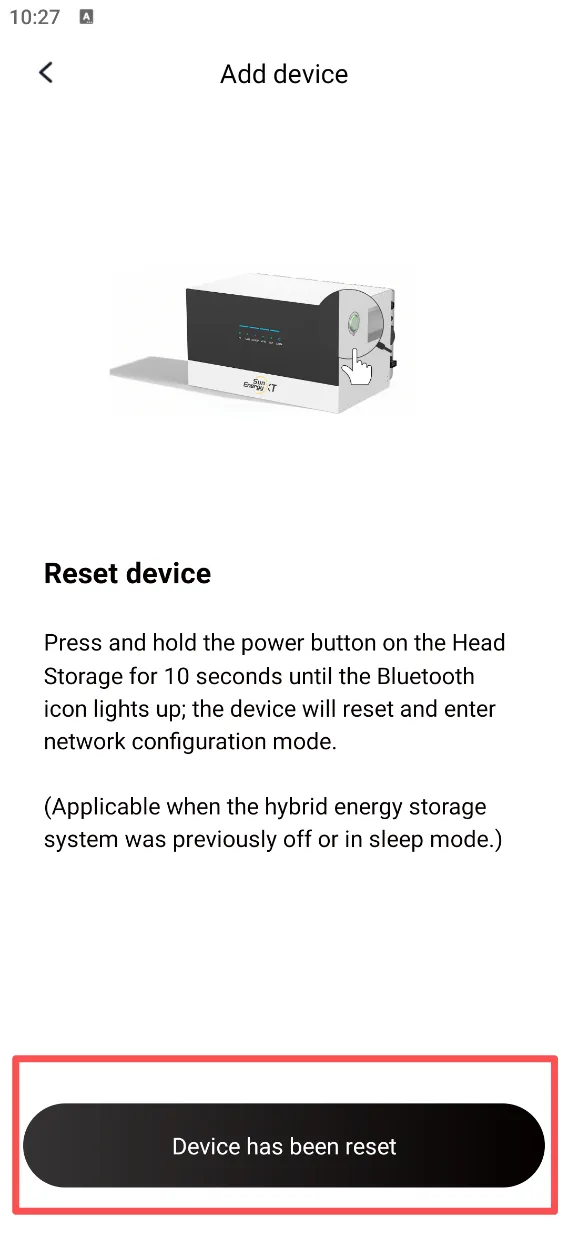
Reset your device by pressing and holding the power button on the Head Storage for 10 seconds until the Bluetooth icon lights up. Then, tap "Device has been reset".
Step-5 |
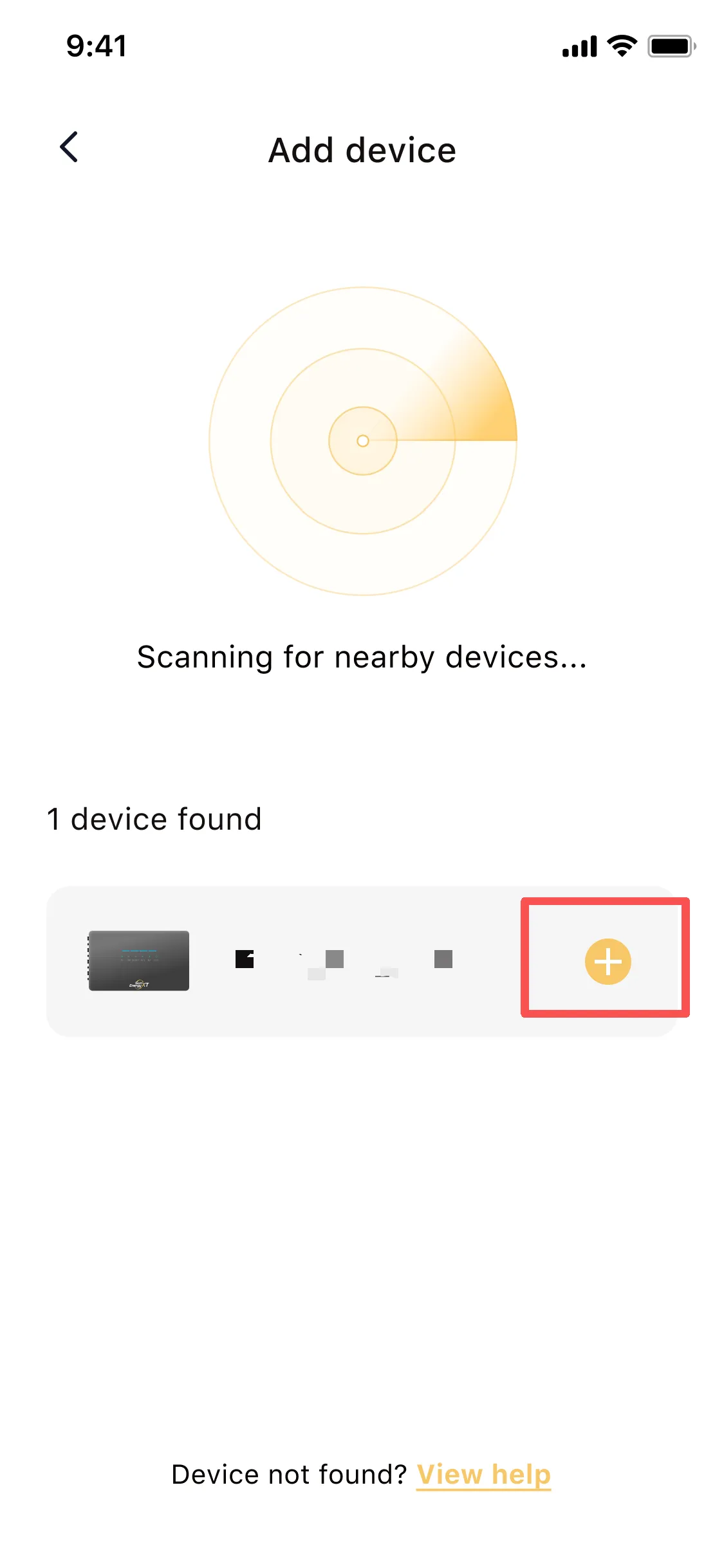
The App will start scanning for nearby devices. Tap the "+" button next to your found device.
Note: If the device is left in network configuration mode for a long time without being paired, it may not be scanned. In this case, you will need to re-enter the network configuration mode.
If Bluetooth still cannot be scanned after retrying, please disconnect the PV and grid power, turn off the device, wait for 30 seconds, and then press and hold the power button again for 10 seconds to re-enter the network configuration mode.
Step-6 |
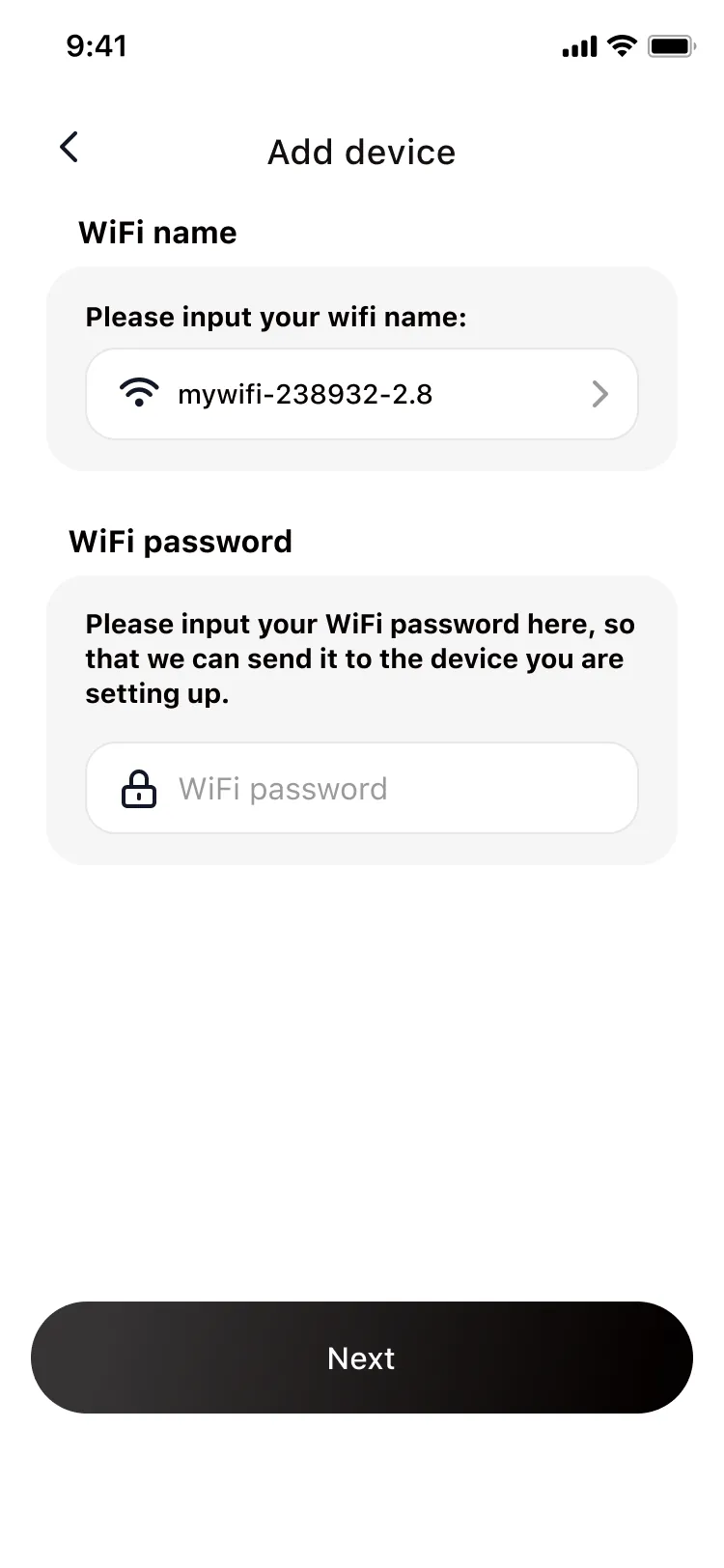
Input your WiFi name and WiFi password, then tap "Next".
Step-7 |
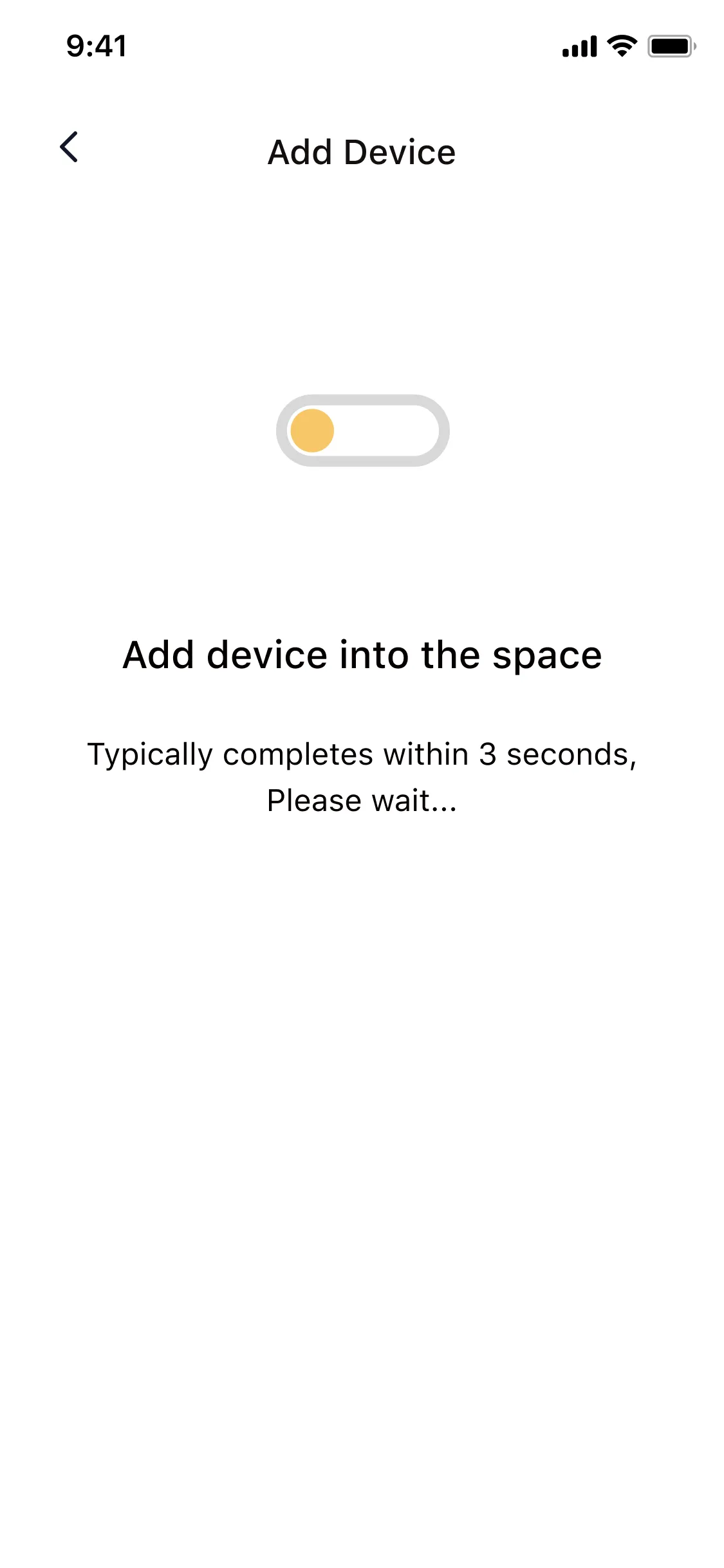
Wait briefly while the App adds the device into the space.
Step-8 |
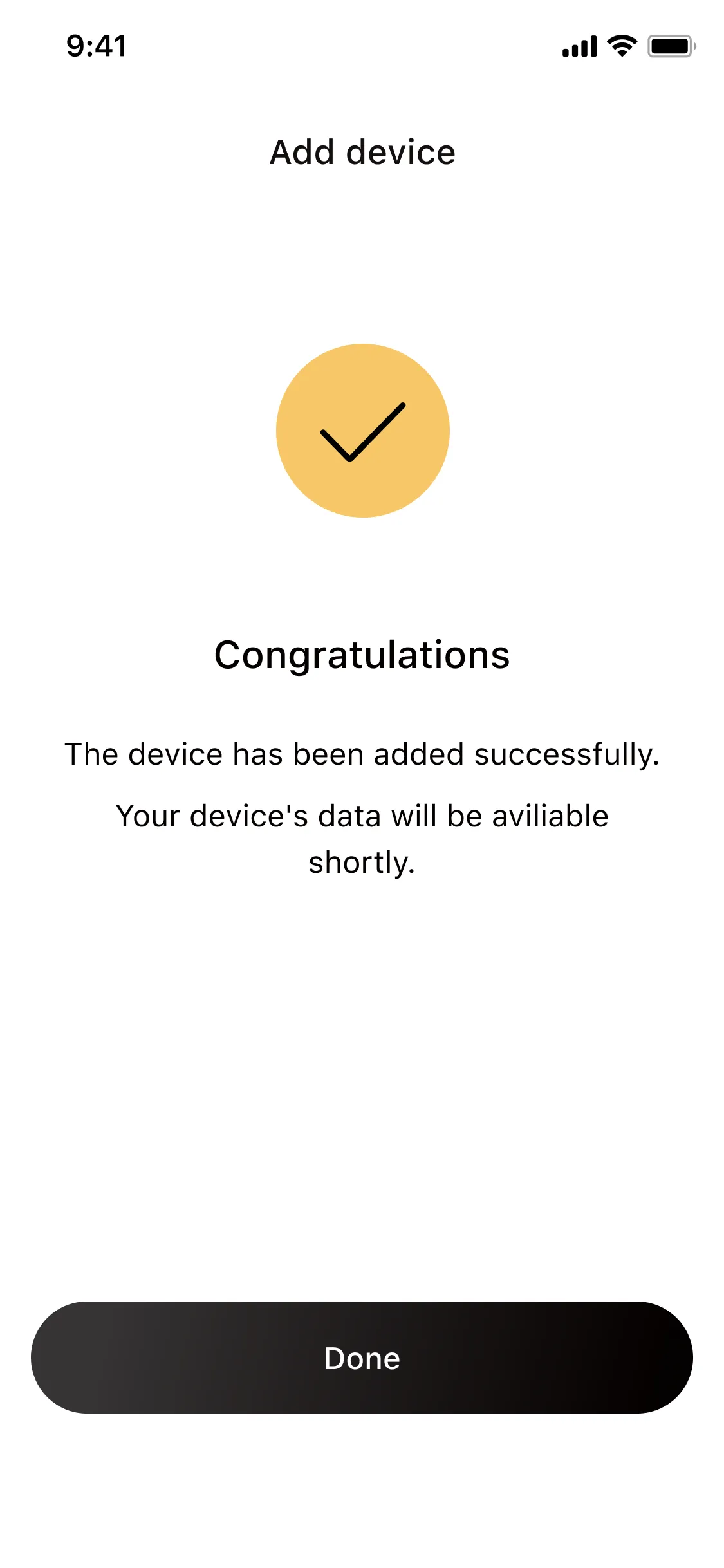
Once the "Congratulations" screen appears, tap "Done" to complete the setup.